How To Edit Page Content On Your Website
First login to your website with the login details provided by us. Type /login after your website url to access the login page.

Then navigate to the page you would like to modify.
Once on the page you will see a dark grey bar towards the top of the page. On it will be an 'Edit Page' button. Click it and you will be taken to the page editor.
 On the page editor find the part you would like to modify and hover over it. Then 'Edit | Duplicate | Delete' will become visible. You will need to click on edit.

A window will then open and you will be able to modify the contents of the part of the page you are editing.
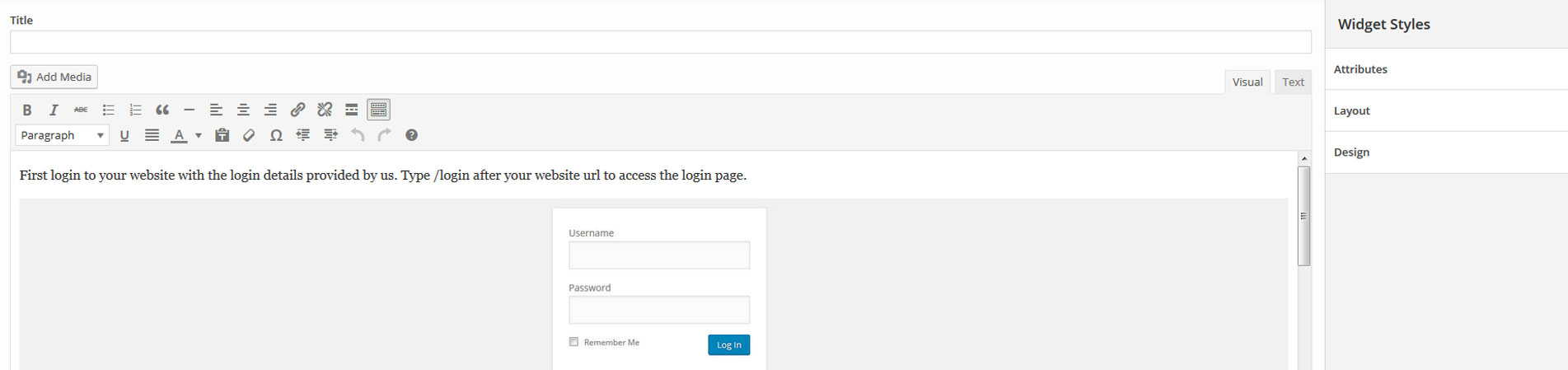
If you are complete then you will need to press the 'Done' button which is located in the bottom right corner of the window.

Then preview your website to make sure the changes are correct by clicking the 'Preview Changes' button which is located to the right of the page.

If something is wrong then return to the page editor and undo/modify the changes you have made.
Finally, if you are finished. Click 'Update' which is located under the 'Preview Changes' button. This will publish the changes you have made.

If you are stuck on any of these steps or are unsure about editing your site built by Utopia Signs, please don't hesitate to get in touch.